Back to How To Get Started Page
Facebook Trouble shoot and Fix
Why does this error keep happening and how to you fix it? see screenshot
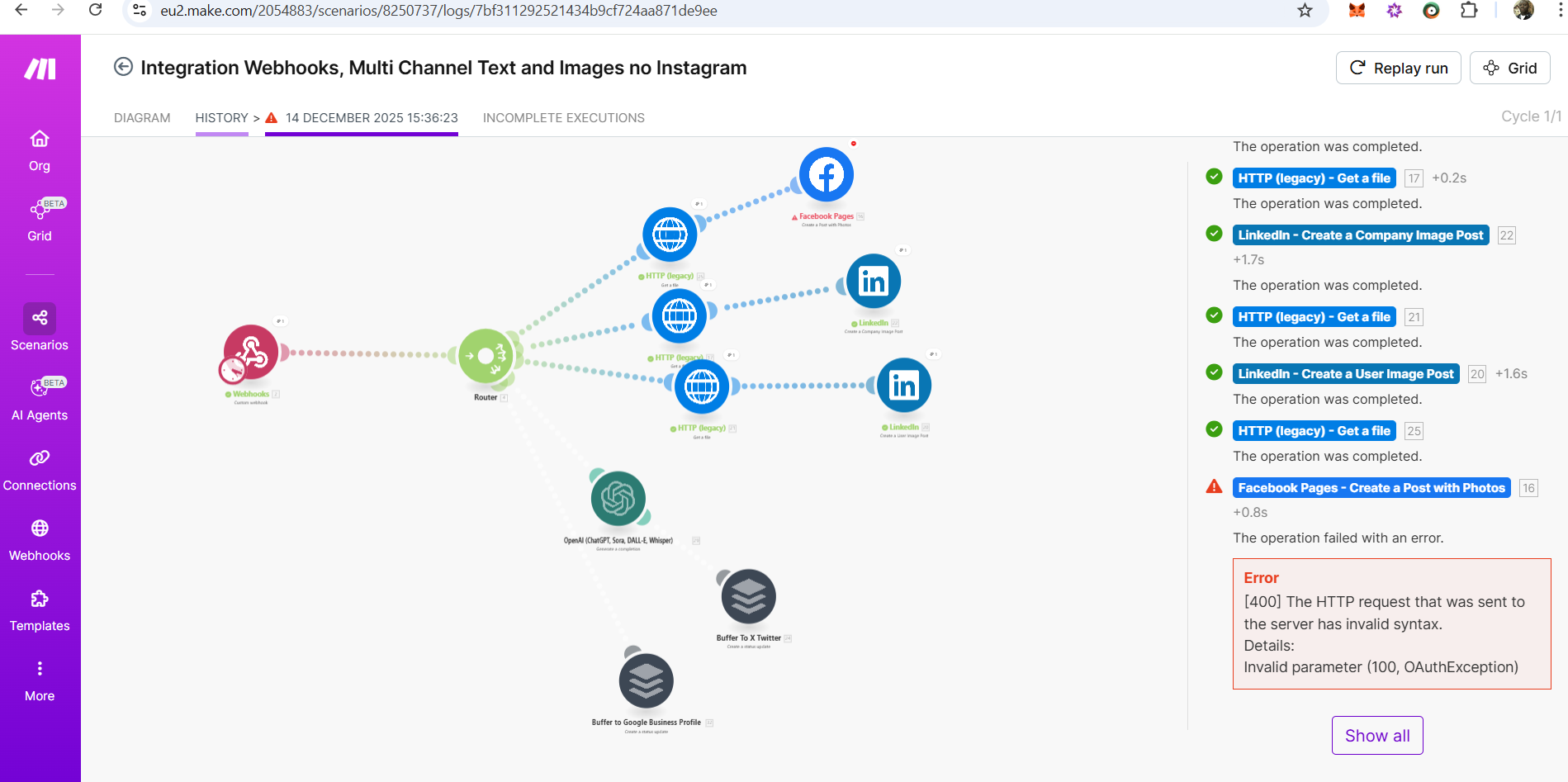
Based on the error message [400] … Invalid parameter (100, OAuthException) and the visual layout of your Make.com scenario, the issue is almost certainly how the image data is being passed from the HTTP – Get a file module to the Facebook Pages module.
Here is a step-by-step guide to fixing this.
The Most Likely Cause: Incorrect Data Mapping
You have an HTTP – Get a file module immediately before the Facebook module. This downloads the image to Make’s temporary memory.
However, the Facebook API often throws a “100” error if you try to pass the binary file data incorrectly, or if you are trying to pass a URL into a field expecting binary data (or vice versa).
Solution 1: The “Direct URL” Method (Recommended/Easiest)
Facebook is actually very good at downloading images itself. You often do not need the “HTTP – Get a file” module at all.
- Delete the HTTP (legacy) – Get a file module that is connected to the Facebook node.
- Connect the Router directly to the Facebook Pages module.
- Open the Facebook Pages module settings.
- Look for the field labeled Photo URL or Url.
- Map the Image URL coming directly from your Webhooks module (or wherever the image link originates) into this field.
- Save and Run.
Why this works: It eliminates the complexity of handling binary file streams. You just tell Facebook “Here is the link, go get it.”
Solution 2: The “File Upload” Method (If you must download it first)
If the image URL is behind a password or not publicly accessible, you must use the “HTTP – Get a file” module. If so, you need to fix the mapping:
- Keep the HTTP – Get a file module.
- Open the Facebook Pages module settings.
- Locate the Source or Method dropdown. Ensure it is set to Upload a file (not “Input a URL”).
- In the File field, ensure you have mapped the Data variable (it usually looks like a piece of paper icon) coming from the HTTP – Get a file module.
- Crucial: Make sure you also define a File Name (e.g., image.jpg) if the module asks for it, or ensure the HTTP module successfully detected a file name.
Other Potential Causes to Check
- Invalid Image Format (WebP)
Facebook often rejects .webp images, which are becoming common on the web.
- Check: Look at the URL coming from your Webhook. Does it end in .webp?
- Fix: You will need to add a CloudConvert module between the HTTP module and Facebook to convert the image from WebP to JPG or PNG.
- Image Size/Ratio
If the image is tiny (under 200x200px) or the aspect ratio is extreme (like a very tall, thin infographic), Facebook will reject it with a generic “Invalid parameter” error. - Permissions (The “OAuth” part of the error)
Sometimes this error implies the connection token has expired or lacks permission to post photos.
- Fix: Go to the Connections tab in Make.com, find your Facebook connection, and click Reauthorize.
Summary: Try Solution 1 first. Deleting the HTTP downloader and mapping the Image URL directly into the Facebook module fixes 90% of these errors.
Screen shot 2
Question:
How do I map this for Solution 1: The “Direct URL” Method (Recommended/Easiest)
Facebook is actually very good at downloading images itself
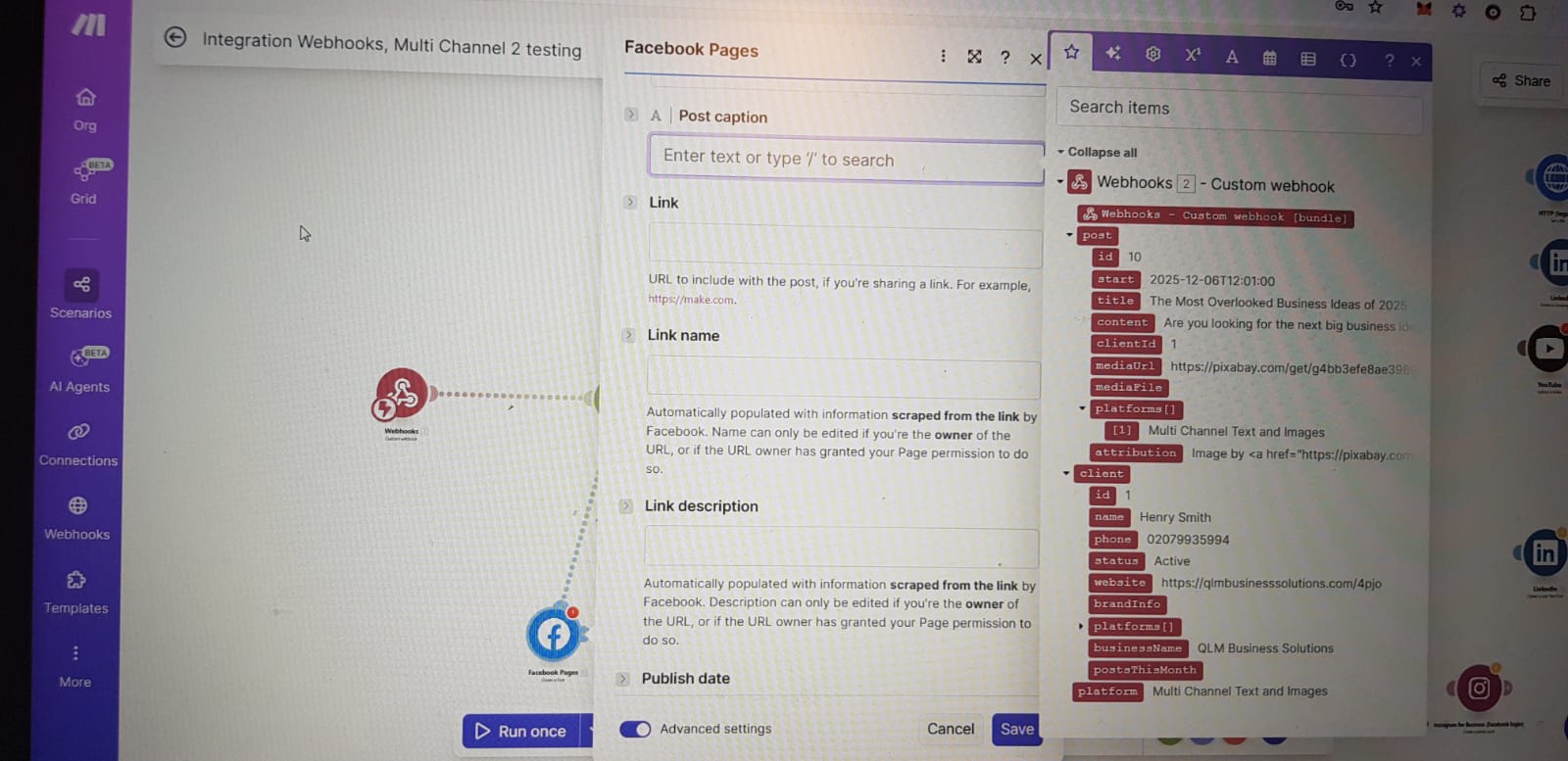
Based on your screenshot 2, you are currently inside the Facebook Pages module settings. Here is exactly how to map the fields from the Webhook data (purple items on the right) into the Facebook fields (white boxes in the center) to use the Direct URL Method.
- Map the “Post caption”
This is the text that will appear above your image.
- Click inside the Post caption field.
- On the panel to the right, look under the post section.
- Click the purple variable named content.
- (Optional but recommended): Press Enter to make a new line, then click the purple variable named attribution. This ensures you credit the artist if the image came from Unsplash/Pixabay.
- Map the “Link” (The Image URL)
This is the most important step for “Solution 1”. By putting the URL here, Facebook will automatically fetch and display the image.
- Click inside the Link field.
- On the panel to the right, look under the post section.
- Click the purple variable named mediaUrl.
Summary of the Mapping
- Post caption: content
- Link: mediaUrl
Leave the other fields blank (Link name, Link description). Facebook will automatically generate the preview based on the mediaUrl you provided.
Once mapped, click OK at the bottom right and run the scenario to test!
More Trouble Shooting.
Based on the error message [400] … Invalid parameter (100, OAuthException) and the visual layout of your Make.com scenario, the issue is almost certainly how the image data is being passed from the HTTP – Get a file module to the Facebook Pages module.
Here is a step-by-step guide to fixing this.
The Most Likely Cause: Incorrect Data Mapping
You have an HTTP – Get a file module immediately before the Facebook module. This downloads the image to Make’s temporary memory.
However, the Facebook API often throws a “100” error if you try to pass the binary file data incorrectly, or if you are trying to pass a URL into a field expecting binary data (or vice versa).
Solution 1: The “Direct URL” Method (Recommended/Easiest)
Facebook is actually very good at downloading images itself. You often do not need the “HTTP – Get a file” module at all.
- Delete the HTTP (legacy) – Get a file module that is connected to the Facebook node.
- Connect the Router directly to the Facebook Pages module.
- Open the Facebook Pages module settings.
- Look for the field labeled Photo URL or Url.
- Map the Image URL coming directly from your Webhooks module (or wherever the image link originates) into this field.
- Save and Run.
Why this works: It eliminates the complexity of handling binary file streams. You just tell Facebook “Here is the link, go get it.”
Solution 2: The “File Upload” Method (If you must download it first)
If the image URL is behind a password or not publicly accessible, you must use the “HTTP – Get a file” module. If so, you need to fix the mapping:
- Keep the HTTP – Get a file module.
- Open the Facebook Pages module settings.
- Locate the Source or Method dropdown. Ensure it is set to Upload a file (not “Input a URL”).
- In the File field, ensure you have mapped the Data variable (it usually looks like a piece of paper icon) coming from the HTTP – Get a file module.
- Crucial: Make sure you also define a File Name (e.g., image.jpg) if the module asks for it, or ensure the HTTP module successfully detected a file name.
Other Potential Causes to Check
- Invalid Image Format (WebP)
Facebook often rejects .webp images, which are becoming common on the web.
- Check: Look at the URL coming from your Webhook. Does it end in .webp?
- Fix: You will need to add a CloudConvert module between the HTTP module and Facebook to convert the image from WebP to JPG or PNG.
- Image Size/Ratio
If the image is tiny (under 200x200px) or the aspect ratio is extreme (like a very tall, thin infographic), Facebook will reject it with a generic “Invalid parameter” error. - Permissions (The “OAuth” part of the error)
Sometimes this error implies the connection token has expired or lacks permission to post photos.
- Fix: Go to the Connections tab in Make.com, find your Facebook connection, and click Reauthorize.
Summary: Try Solution 1 first. Deleting the HTTP downloader and mapping the Image URL directly into the Facebook module fixes 90% of these errors.
Final Fix
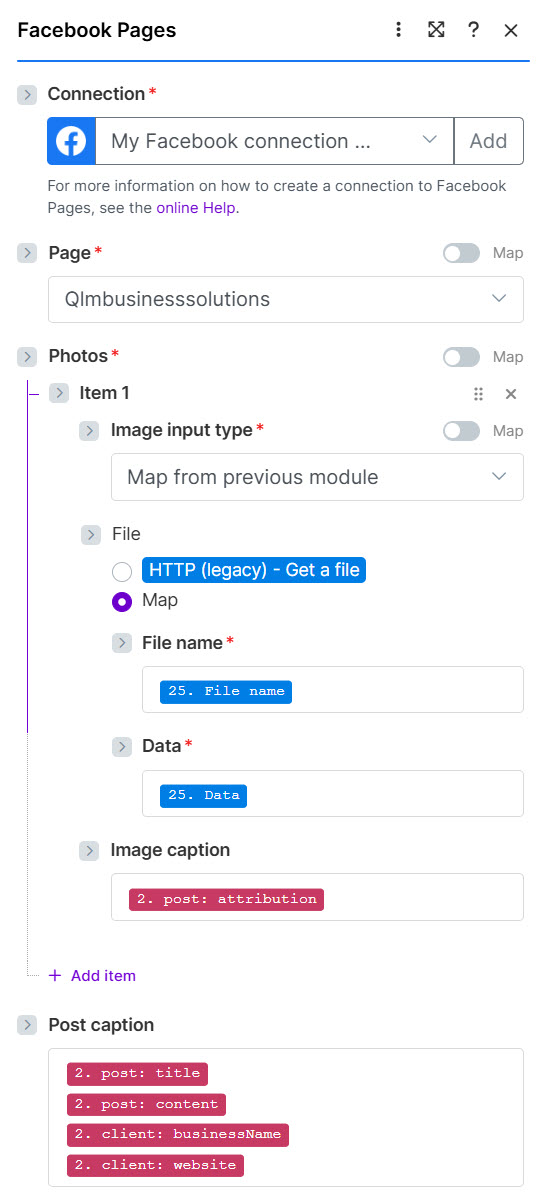
This setup is technically correct for the “File Upload” method, but it is unstable. That is why it works sometimes and fails others.
The “File Upload” method (using the HTTP module to download the image first) creates three common points of failure:
- File Name Issues: If the HTTP module fails to detect a proper file extension (e.g., it just gets “image” instead of “image.jpg”), Facebook rejects the upload.
- File Format Issues: If the image source is .webp (common on the web now), Facebook often rejects the binary data upload, whereas it would accept the URL directly.
- Timeout/Size: Large images can cause the HTTP module to time out before passing the data to Facebook.
The Recommended Fix (Switch to URL Method)
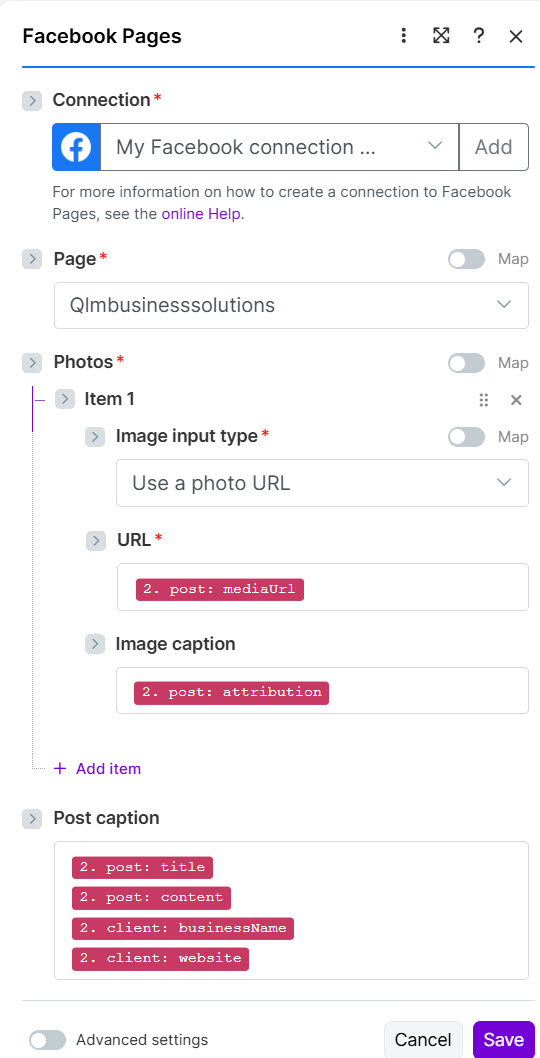
To fix the intermittent errors, you should switch to the Direct URL method. This is much more reliable because Facebook handles the downloading, optimizing, and file-type conversion on their end.
Here is exactly what to change in that specific Facebook module window:
- Change Image Input Type:
- Look at the field labeled Image input type (currently set to “Map from previous module”).
- Click the dropdown and select Input URL (or “Upload from URL”).
- Map the URL:
- A new field will appear labeled Url or Photo Url.
- Map the mediaUrl (purple block) from your Webhook (Module 2) into this field.
- Remove the HTTP Dependencies:
- Clear the File name and Data fields (they will likely disappear when you change step 1 anyway).
- You can now delete the HTTP (legacy) – Get a file module (Module 25) from your flow entirely, as it is no longer needed.
Why this is better:
You are removing the “middleman” (Make.com’s server). You are simply telling Facebook: “Here is the link to the image, go fetch it yourself.” This eliminates 99% of the “Invalid Parameter” or “OAuth” errors associated with image uploads.
Final Fix